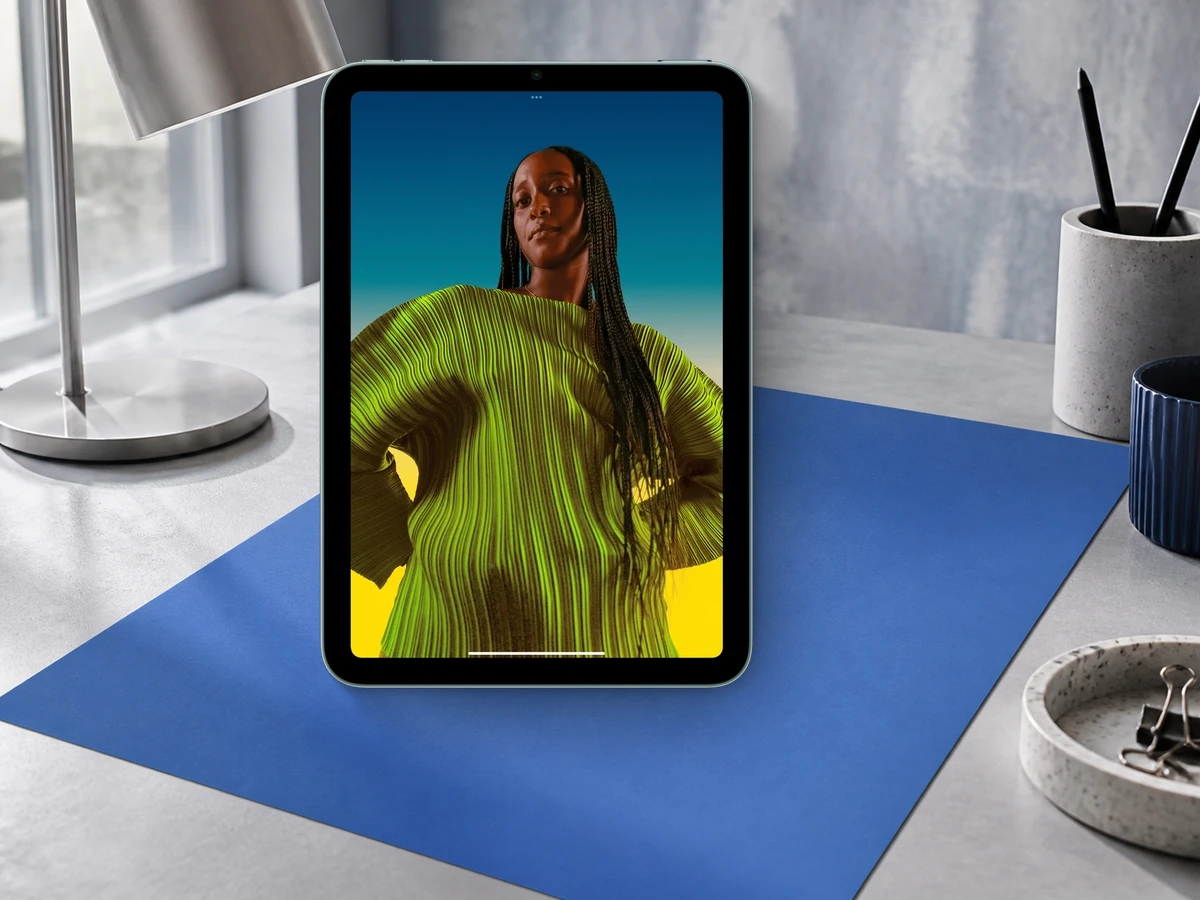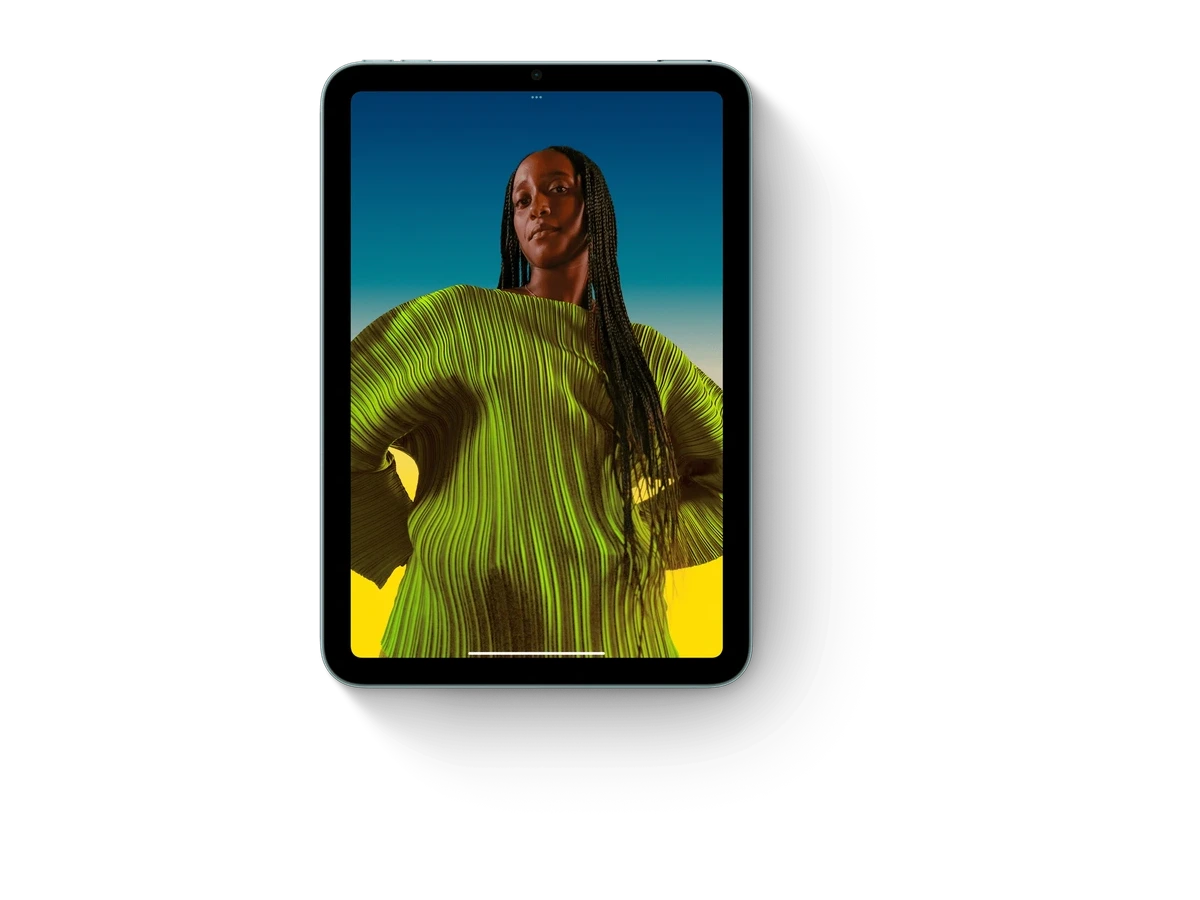
Source photo
Upload your image
Choose a clear product, person, or object photo in JPG, PNG, or WebP format.
AI background remover
Turn busy product photos into clean, flexible cutouts. Preview your image, isolate the subject, and prepare it for storefronts, ads, presentations, and social posts.
Your image is processed securely and saved to your account.
Clear subjects stay flexible across product, lifestyle, and campaign layouts.
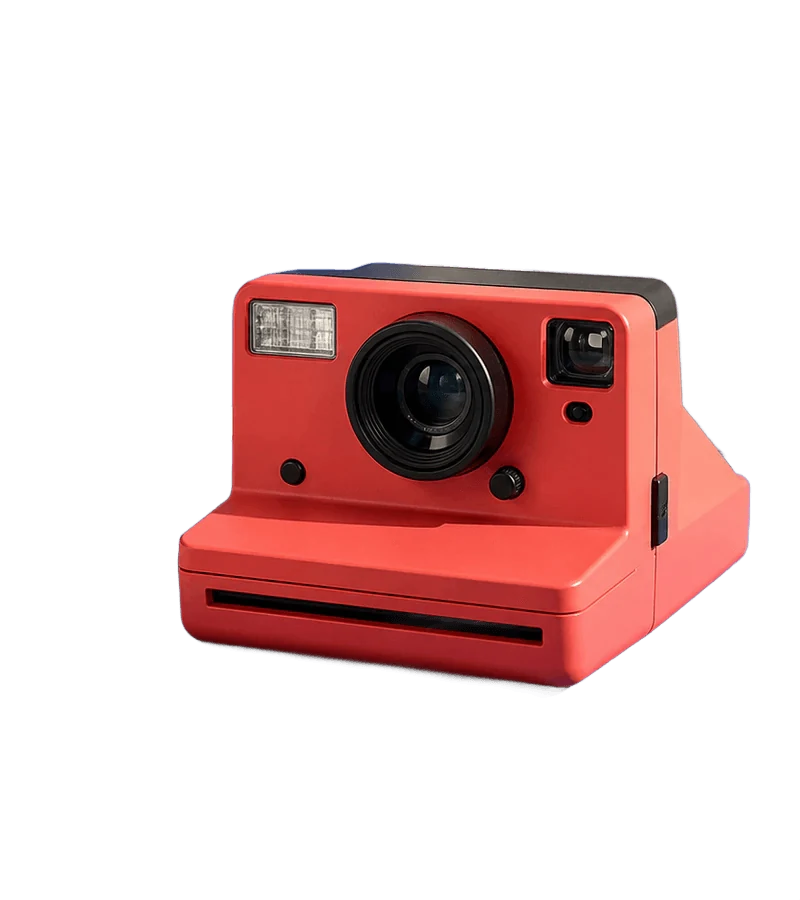
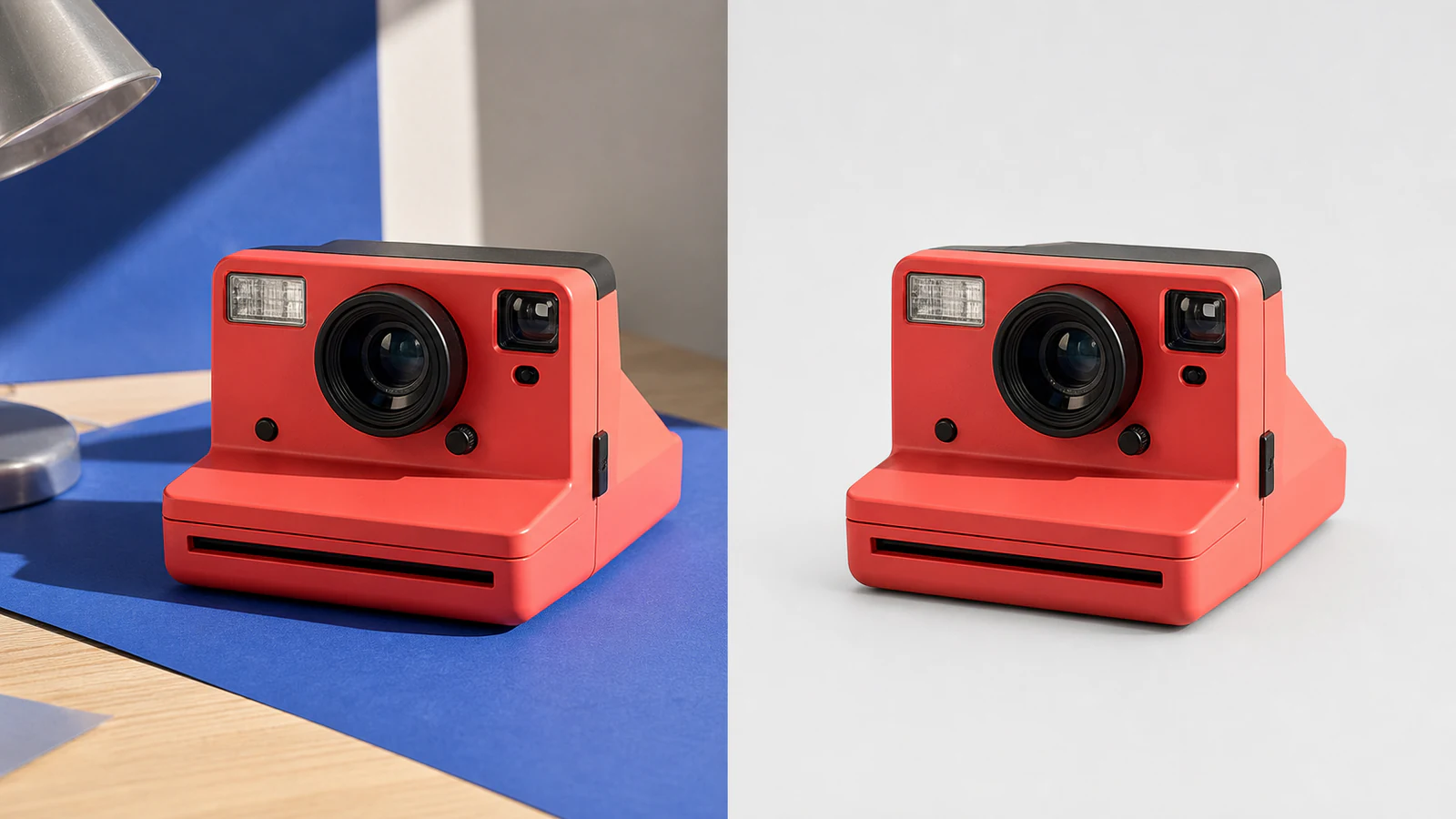
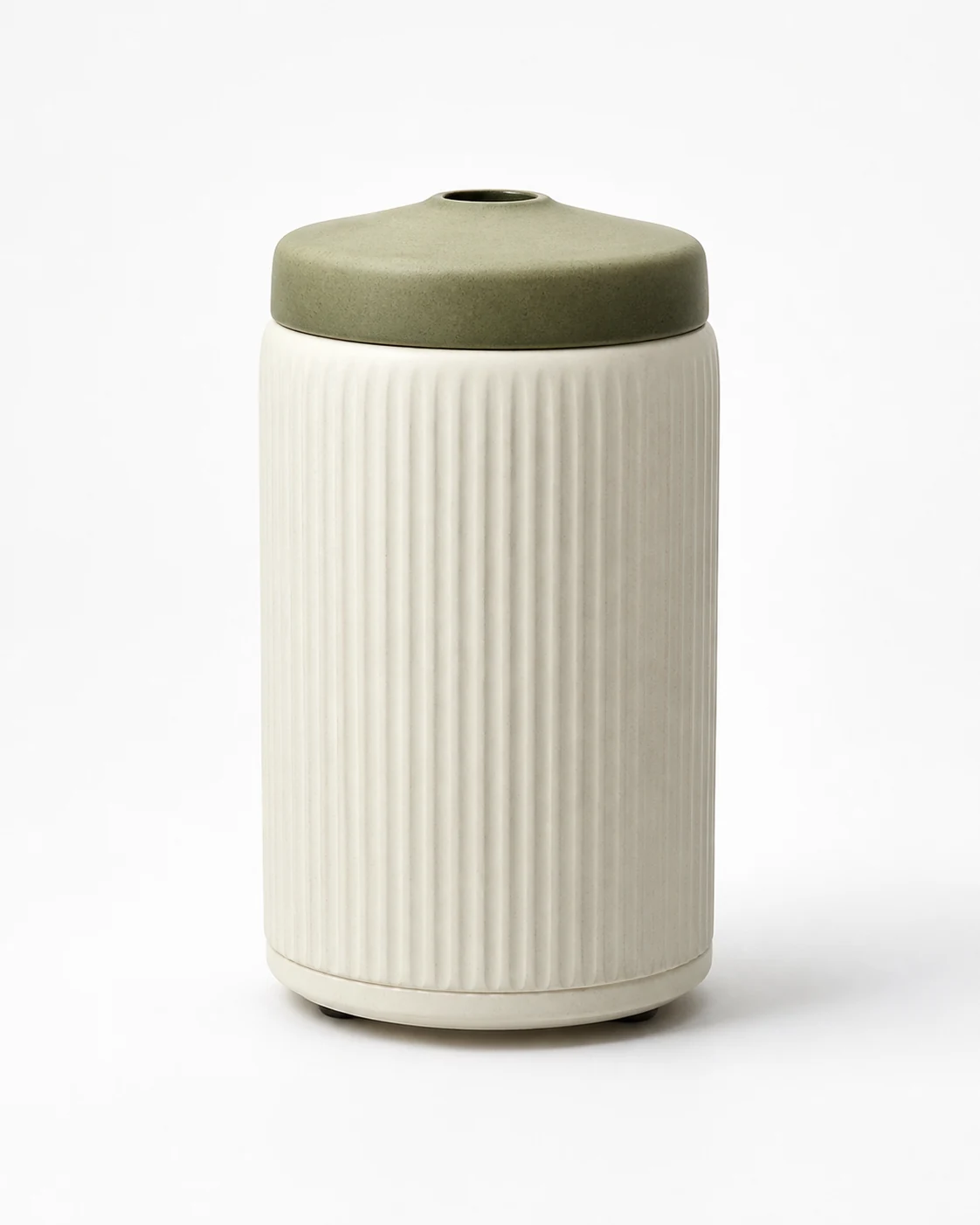
Drag the slider to compare the same product before and after background removal
Three simple steps
Start with a clear image and move from upload to a reusable cutout without a complicated editing workflow.
Choose a clear product, person, or object photo in JPG, PNG, or WebP format.
 AI
AILet AI identify the foreground and separate it from distracting surroundings.
Export a clean PNG, place the cutout in a new scene, or keep building in Adyvi.
Before and after
A clean silhouette keeps attention on the item that matters. Remove a cluttered setting, preserve useful product detail, and reuse the subject across more layouts.
One cutout, many destinations
Once the background is gone, the same product can move into a clean listing, a lifestyle scene, or a campaign layout.
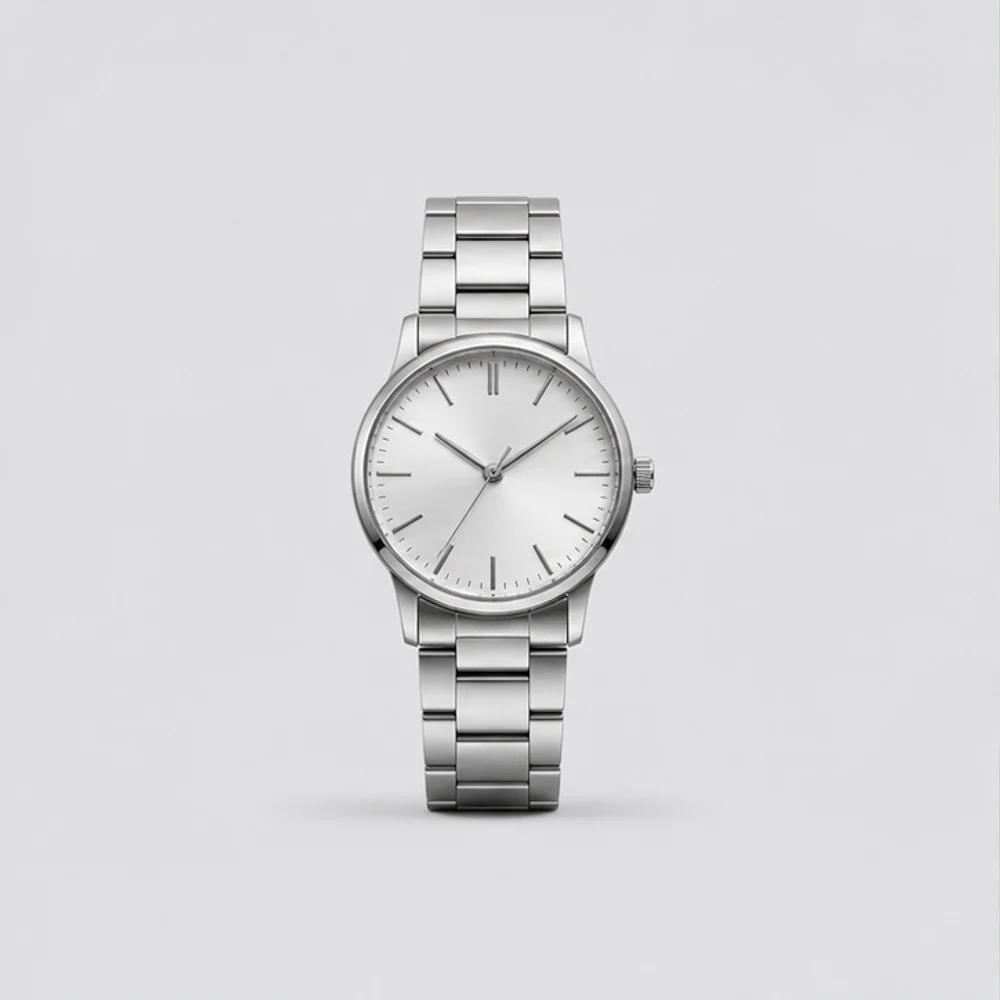
Give product grids a consistent, distraction-free foundation.
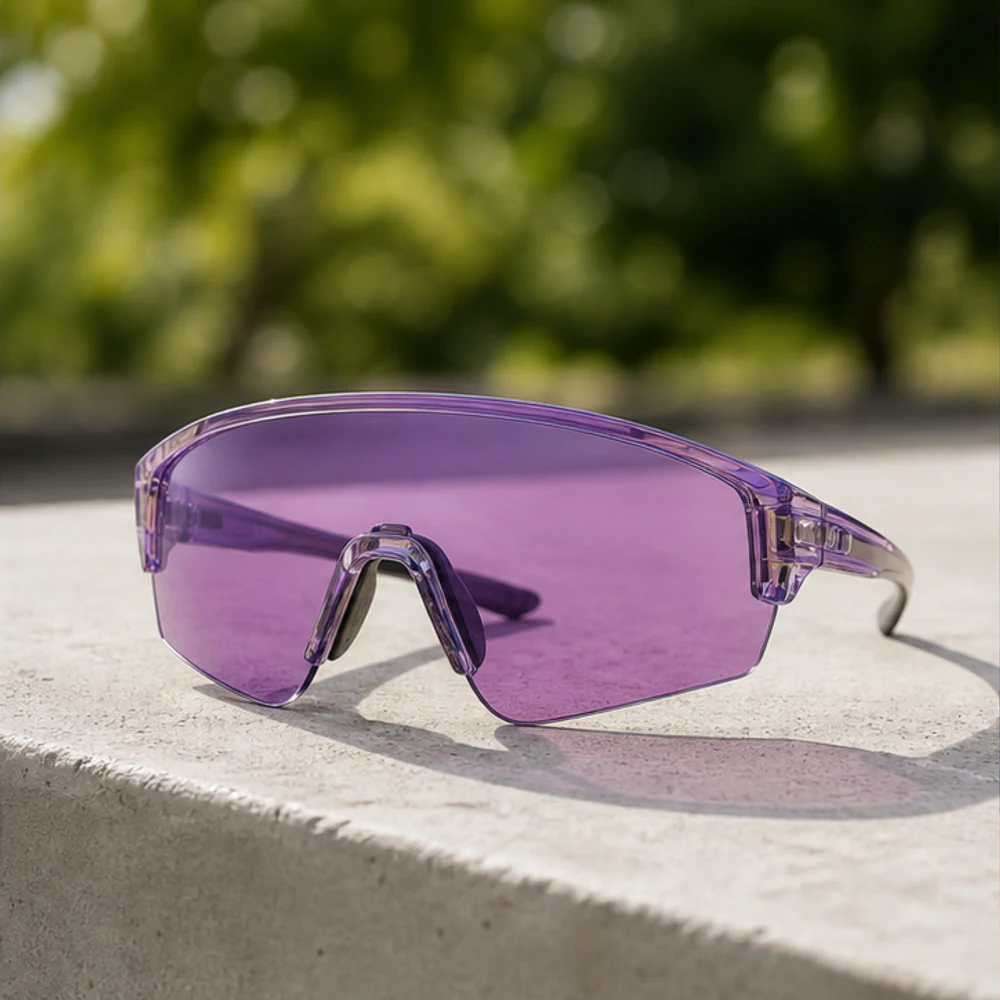
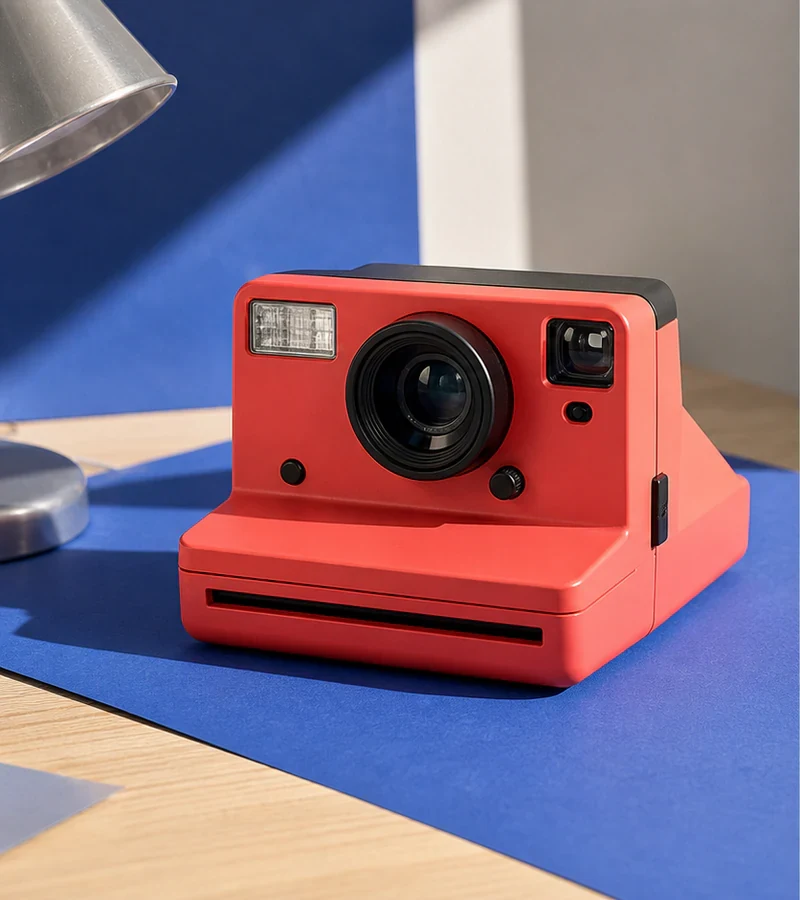
Place a reusable subject into a setting that adds context and mood.
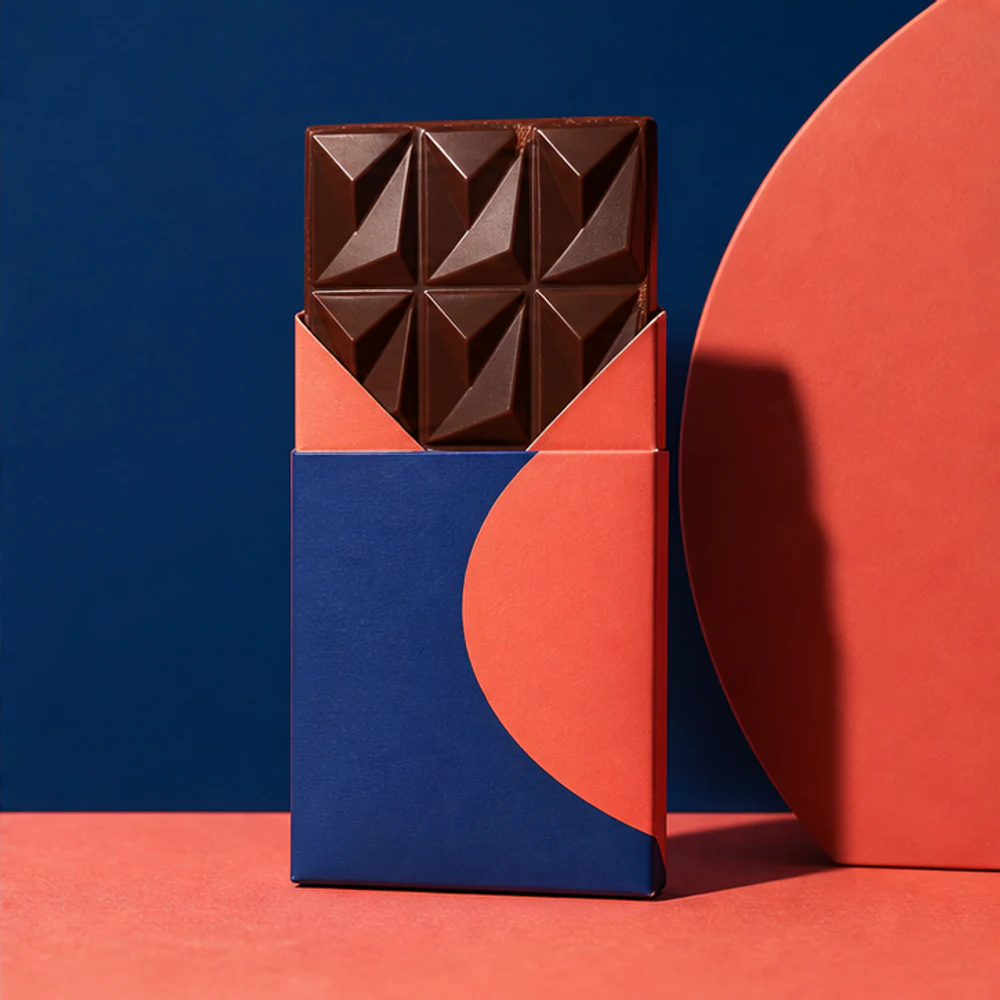
Build launch graphics, ads, and social posts around a clear focal point.
Ready for the next layout
Good cutouts preserve the silhouette, texture, and small edges that make an object feel real. Start with a sharp, well-lit source image for the cleanest result.
Customer stories
Teams use Adyvi to move from a product image to polished campaign directions without rebuilding every visual from scratch.
“I can turn one product launch into a full set of social and ecommerce creatives without starting over.”
 Naomi_KGrowth marketer
“The brand direction stays consistent across variations, which makes review and approval much faster.”
 Rachel_TBrand designer
“It feels like briefing a small creative team, not fighting with a blank design canvas.”
 Lena FischerFounder
Questions
Answers about source images, transparent files, difficult edges, and what to do after creating a cutout.
Start with a JPG, PNG, or WebP image. A large, sharp source with the complete subject visible gives the remover more edge detail to work with.
Upload the image, remove the background, and export the result as a PNG. PNG supports transparency, so the cutout can sit cleanly on another color or scene.
Use an in-focus photo with clear contrast between the subject and its surroundings. Leave a little room around the complete silhouette and avoid heavy motion blur.
Fine hair, fur, translucent objects, and reflections are more demanding than solid products. Review those edges at full size before publishing the result.
Use the cutout for product listings, collages, presentations, ads, social posts, or a new Adyvi product scene. Keep the original image when exact packaging or product evidence matters.
Start with one image
Preview a product photo, then continue into Adyvi to build the next visual direction.